Android_项目目录结构

项目目录结构

  1. .gradle.idea:这两个目录都是Android Studio自动生成的文件。无须关心,不要手动编辑。
  2. app:项目中的代码、资源等内容几乎都是放置在这个目录下,开发工作也基本都是在这个目录下进行。
  3. build:这个目录主要包含了一些在编译时自动生成的文件。
  4. gradle:这个目录下包含了gradle wrapper的配置文件,使用gradle wrapper的方式不需要提前将gradle下载好,而是会自动根据本地的缓存情况决定是否需要联网下载gradle。Android Studio默认没有启用gradle wrapper的方式,如果需要打开,可以点击File, Settings, Build, Execution, Deployment, Gradle,进行配置更改。
  5. .gitignore:这个文件用来将指定的目录或文件排除在版本控制之外。
  6. build.gradle:项目全局的gradle构建脚本,文件内容通常不需要修改。
  7. gradle.properties:项目全局的gradle配置文件,在这里配置的属性将会影响到项目中所有的gradle编译脚本。
  8. gradlew和gradlew.bat:这两个文件是用来在命令行界面中执行gradle命令的,其中gradlew是在Linux或Mac系统使用,gradlew.bat是在Windows系统中使用。
  9. 项目名.iml:iml文件是所有IntelliJ IDEA项目都会自动生成的一个文件(Android Studio是基于IntelliJ IDEA开发的),用于标识这是一个IntelliJ IDEA项目,我们不需要修改这个文件中的任何内容。
  10. local.properties:这个文件用于指定本机中的Android SDK路径,通常内容都是自动生成的,并不需要修改。除非本机中的Android SDK位置发生了变化,那么就将这个文件中的路径改成新的位置即可。
  11. settings.gradle:用于指定项目中所有引入的模块。由于此时项目中只有一个app模块,因此文件中只引入了app这一个模块。通常情况下,模块的引入是自动完成的,很少去手动修改此文件。

发现,基本上除了app目录之外,大多数目录、文件都是自动生成的。下面对app内容进行更为详细的分析。

  1. build:这个目录和外层的build目录类似,主要也是包含了一些在编译时自动生成的文件,不过它里面的内容更多更杂,不需要过多关心。

  2. libs:如果你的项目中使用到了第三方jar包,就需要把这些jar包都放在libs目录下,放在这个目录下的jar包都会被自动添加到构建路径里去。

  3. androidTest:此处是用来编写Android Test测试用例的,可以对项目进行一些自动化测试。

  4. java:java目录是放置所有Java代码的地方,展开该目录,将看到刚才创建的HelloWorldActivity文件就在里面。

  5. res:这个目录下的内容有点多。简单点说,就是在项目中使用到的所有图片、布局、字符串等资源都要存放在这个目录下。当然这个目录下还有很多子目录,图片放在drawable目录下,布局放在layout目录下,字符串放在values目录下,所以不用担心会把整个res目录弄得乱糟糟的。

  6. AndroidManifest.xml:这是整个Android项目的配置文件,在程序中定义的所有四大组件都需要在这个文件里注册,另外还可以在这个文件中给应用程序添加权限声明。

  7. test:此处是用来编写Unit Test测试用例的,是对项目进行自动化测试的另一种方式。

  8. .gitignore:这个文件用于将app模块内的指定的目录或文件排除在版本控制之外,作用和外层的.gitignore文件类似。

  9. app.iml:IntelliJ IDEA项目自动生成的文件,不需要关心或修改这个文件中的内容。

  10. build.gradle:这是app模块的gradle构建脚本,这个文件中会指定很多项目构建相关的配置。

  11. proguard-rules.pro:这个文件用于指定项目代码的混淆规则,当代码开发完成后打成安装包文件,如果不希望代码被别人破解,通常会将代码进行混淆,从而让破解者难以阅读。

AndroidManifest.xml

1
2
3
4
5
6
<activity anroid:name=".HelloWorldActivity">
<intent-filter>
<action android:name="android.intent.action.MAIN"></action>
<category android:name="android.intent.category.LAUNCHER"></category>
</intent-filter>
</activity>

这段代码表示对HelloWorldActivity这个活动进行注册, 没有在AndroidManifest.xml里注册的活动是不能使用的。其中intent-filter里的两行代码非常重要,<action android:name="android.intent.action.MAIN"/><category android:name="android.intent.category.LAUNCHER"/>表示HelloWorldActivity是这个项目的主活动,在手机上点击应用图标, 首先启动的就是这个活动。

Activity是Android应用程序的门面,凡是在应用中看得到的东西,都是放在活动中的。因此看到的界面,其实就是HelloWorldActivity这个活动。打开HelloWorldActivity,代码如下所示:

1
2
3
4
5
6
7
public class HelloWorldActivity extends AppCompatActivity{
@Override
protected void onCreate(Bundle savedInstanceState){
super.onCreate(savedInstanceState);
setContentView(R.layout.hello_world_layout);
}
}

可以看到,HelloWorldActivity是继承自AppCompatActivity的,这是一种向下兼容的Activity,可以将Activity在各个系统版本中增加的特性和功能最低兼容到Android2.1系统。

Activity是Android系统提供的一个活动基类,我们项目中所有的活动都必须继承它或者它的子类才能拥有活动的特性(AppCompatActivity是Activity的子类)。然后可以看到HelloWorldActivity中有一个onCreate()方法,这个方法是一个活动被创建时必定要执行的方法,其中只有两行代码,并且没有Hello World!的字样。那么显示的Hello World!是在哪里定义的呢?

其实Android程序的设计讲究逻辑和视图分离,因此是不推荐在活动中直接编写界面的,更加通用的一种做法是,在布局文件中编写界面,然后在活动中引入进来。可以看到,在onCreate方法的第二行调用了setContentView方法,就是这个方法给当前的活动引入了一个hello_world_layout布局,Hello World!就是在这里定义的。

布局文件都是定义在res/layout目录下的,展开layout目录,会看到hello_world_layout.xml这个文件。打开该文件并切换到Text视图,代码就出来了:

项目中的资源

  1. 所有以drawable开头的文件夹都是用来放图片的;
  2. 所有以mipmap开头的文件夹都是用来放应用图标的;
  3. 所有以values开头的文件夹都是用来放字符串、样式、颜色等配置的;
  4. layout文件夹是用来放布局文件的。

mipmap开头的文件夹有很多,主要是为了兼容各种设备。drawable文件夹也是相同的道理,虽然Android Studio没有自动生成,但应该自己创建drawable-hdpi、drawable-xhdpi、drawable-xxhdpi等文件夹。在制作程序的时候最好能够给同一张图片提供几个不同分辨率的版本,分别放在对应的文件夹下。当程序运行的时候,会自动根据当前运行设备分辨率的高低选择加载。如果只有一份图片,那就都放在drawable-xxhdpi文件夹下。

values

打开res/values/strings.xml文件,内容如下所示:

1
2
3
<resources>
<string name="app_name">HelloWorld</string>
</resources>

这里定义了一个应用程序名的字符串,有以下两种方式来引用它。

  • 在代码中通过R.string.app_name可以获得该字符串的引用
  • 在XML中通过@string/app_name可以获得该字符串的引用

其中string部分可以替换,如果引用的是图片资源可以替换成drawable,如果引用的是应用图标可以替换成mipmap,如果引用的是布局文件可以替换成layout

打开AndroidManifest.xml文件,找到如下代码:

1
2
3
4
5
6
7
8
<application>
android:allowBackup="true"
android:icon="@mipmap/ic_launcher"
android:label="@string/app_name"
android:supportRtl="true"
android:theme="@style/AppTheme"
...
</application>

其中,HelloWorld项目的应用图标是通过android:icon来指定的,应用的名称则是通过android:label属性指定的。

build.gradle文件

Android Studio采用Gradle来构建项目。Gradle使用一种基于Groovy的领域特定预言(DSL)来声明项目设置,摒弃了传统基于XML(如Ant和Maven)的烦琐配置。

HelloWorld项目中有两个build.gradle文件,一个是在最外层目录下,一个是在app目录下。

Android系统源码目录

整体结构

各个版本的源码目录基本是类似的,如果是编译后的源码目录,会多一个out文件夹,用来存储编译产生的文件。

Android源码根目录 描述
art ART运行环境
bionic 系统C库
bootable 启动引导相关代码
build 存放系统编译规则及generic等基础开发包配置
cts Android兼容性测试套件标准
dalvik Dalvik虚拟机
developers 开发者目录
development 与应用程序开发相关
device 设备相关配置
external 开源模组相关文件
frameworks 应用程序框架,Android系统核心部分,由Java和C++编写
hardware 主要是硬件抽象层的代码
libcore 核心库相关文件
libnativehelper 动态库,实现JNI库的基础
out 编译完成后代码在此目录输出
packages 应用程序包
pdk Plug Development Kit的缩写,本地开发套件
platform_testing 平台测试
prebuilts X86和ARM架构下预编译的一些资源
sdk SDK和模拟器
system 底层文件系统库、应用和组件
toolchain 工具链文件
tools 工具文件
Makefile 全局Makefile文件,用来定义编译规则

packages目录结构

应用层位于整个Android系统的最上层,开发者开发的应用程序以及系统内置的应用程序都在应用层。源码根目录中的packages目录对应着系统应用层,它的目录结构如表所示。

packages目录 描述
apps 核心应用程序
experimental 第三方应用程序
inputmethods 输入法目录
providers 内容提供者目录
screensavers 屏幕保护
services 通信服务
wallpapers 墙纸

应用框架层部分

应用框架层是系统的核心部分,一方面向上提供接口给应用层调用,另一方面向下与C/C++程序库及硬件抽象层等进行衔接。应用框架层的主要实现代码在frameworks/baseframeworks/av目录下,其中frameworks/base目录结构如表所示。

frameworks/base目录 描述
api 定义API
cmds 重要命令:am、app_proce
core 核心库
data 字体和声音等数据文件
graphics 与图形图像相关
keystore 与数据签名证书相关
libs
location 地理位置相关库
media 多媒体相关库
native 本地库
nfc-extras 与NFC相关
obex 蓝牙传输
opengl 2D/3D图形API
packages 设置、TTS、VPN程序
sax XML解析器
services 系统服务
telephony 电话通信管理
test-runner 测试工具相关
tests 与测试相关
tools 工具
wifi WiFi无线网络

C/C++程序库部分

系统运行库层(Native)中的C/C++程序库的类型繁多,功能强大,C/C++程序库并不完全在一个目录中,这里给出几个常用且比较重要的C/C++程序库所在的目录位置,如表所示。

目录位置 描述
bionic Google开发的系统C库,以BSD许可形式开源
frameworks/av/media 系统媒体库
frameworks/native/opengl 第三方图形渲染库
frameworks/native/services/surfaceflinger 图形显示库,主要负责图形的渲染、叠加和绘制等功能
external/sqlite 轻量级关系型数据库SQLite的C++实现

Android运行时库的代码在art/目录中;硬件抽象层的代码在hardware/目录中,这是手机厂商改动最大的部分,根据手机终端所采用的硬件平台不同会有不同的实现。

源码阅读

系统源码的阅读有很多种方式,总的来说分为两种:一种是在线阅读,另一种是下载源码到本地用软件工具阅读。

  1. 在线阅读
    1. Android 在线阅读源码的网站有很多,比如www.grepcode.comwww.androidxref.com,www.androidos.net.cn等,这里推荐使用www.androidxref.com进行在线阅读。
  2. 使用本地工具,本地阅读源码可以采用Android Studio、Eclipse、Sublime和Source Insight等软件。

Android_repo和编译_烧录

git

参考文章:Git三大特色之Stage

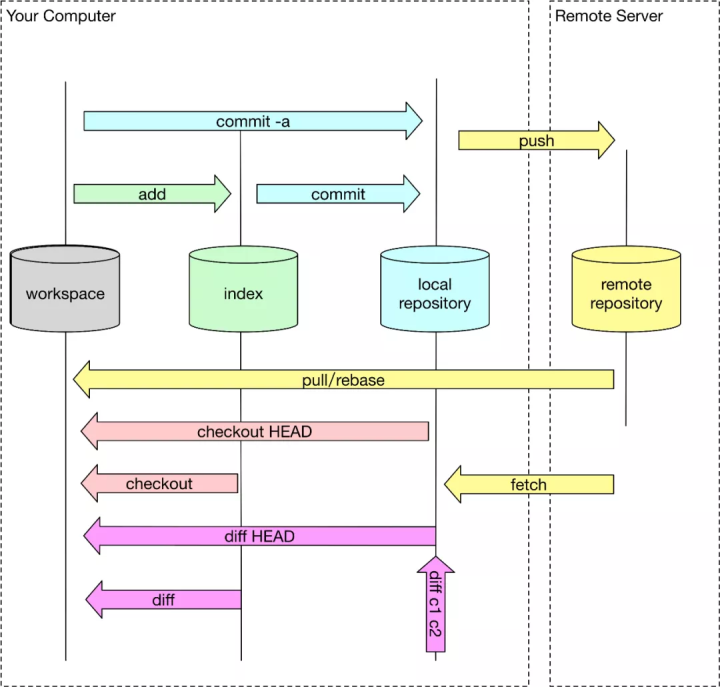
三个区

Git本地数据管理,大概可以分为三个区,工作区、暂存区、版本库。

  1. 工作区(Working Directory)是我们直接编辑的地方,例如 Android Studio 打开的项目,记事本打开的文本等,肉眼可见,直接操作。
  2. 暂存区(Stage 或 Index)是数据暂时存放的区域,可在工作区和版本库之间进行数据的友好交流。
  3. 版本库(commit History)存放已经提交的数据,push 的时候,就是把这个区的数据 push 到远程仓库了。

Stage(暂存区)赋予Git更多灵活性

  • 修改了4个文件,在不放弃任何修改的情况下,其中一个文件不想提交,如何操作?(没add: git add;已经add: git reset --soft
  • 修改到一半的文件,突然间不需要或者放弃修改了,怎么恢复未修改前文件? (git checkout)
  • 代码写一半,被打断去做其他功能开发,未完成代码保存?(git stash)
  • 代码写一半,发现忘记切换分支了?(git stash & git checkout)
  • 代码需要回滚了?(git reset

上面提到的 checkout & stash & reset 等命令,通过不同的参数搭配使用,可以在工作区,暂存区和版本库之间,轻松进行数据的来回切换。

stash的使用场景

此时我在feature_666分支,非常聚精会神加持高专注地实现一个功能666模块,简直键盘如飞的编写代码。然后这时,客户反馈出一个bug,非常严重,必须立马解决,优先级为0!于是,我需要去到release分支去checkout新的分支去工作了,但是666功能还没完成怎么办?

此时面临着一个选择题:

A:提交后切换,代码保存到分支feature_666,却产生一个无意义的提交。

B:不提交直接切换,然而这个选项根本没人会选。

是不是很难选,此时,别忘记还有C选项!

C:使用git stash,将当前修改(未提交的代码)存入缓存区,切换分支修改bug,回来再通过git stash pop取出来。

repo

1
2
3
4
5
6
7
8
9
10
11
12
13
14
15
16
17
18
19
20
21
22
23
24
25
26
27
usage: repo COMMAND [ARGS]
The most commonly used repo commands are:
abandon Permanently abandon a development branch
branch View current topic branches
branches View current topic branches
checkout Checkout a branch for development
cherry-pick Cherry-pick a change.
diff Show changes between commit and working tree
diffmanifests Manifest diff utility
download Download and checkout a change
gitc-delete Delete a GITC Client.
gitc-init Initialize a GITC Client.
grep Print lines matching a pattern
info Get info on the manifest branch, current branch or unmerged branches
init Initialize a repo client checkout in the current directory
list List projects and their associated directories
overview Display overview of unmerged project branches
prune Prune (delete) already merged topics
rebase Rebase local branches on upstream branch
smartsync Update working tree to the latest known good revision
stage Stage file(s) for commit
start Start a new branch for development
status Show the working tree status
sync Update working tree to the latest revision
upload Upload changes for code review
See 'repo help <command>' for more information on a specific command.
See 'repo help --all' for a complete list of recognized commands.

repo init

repo init -u git@gitlab.gz.cvte.cn:tc02_mtk_android10_0/manifest.git -m mtk8788_s..wo_tc02a_sys828.xml -b develop_dt15

repo init:Initialize a repo client checkout in the current directory,选项:(可通过repo help init查看)

选项 含义
-u URL, --manifest-url=URL manifest repository location
-m NAME.xml, --manifest-name=NAME.xml initial manifest file
-b REVISION, --manifest-branch=REVISION manifest branch or revision (use HEAD for default)

repo sync

repo sync:Update working tree to the latest revision。可带-j10指定并行数量。

描述

1
2
3
4
5
6
7
8
9
10
11
12
13
14
15
16
17
18
19
20
21
22
23
24
25
26
27
28
29
30
31
32
33
34
35
36
37
38
39
40
41
42
43
44
45
46
47
48
49
50
51
52
53
54
55
56
57
58
59
60
61
62
63
64
65
66
67
68
69
70
71
72
73
74
75
76
77
78
79
80
81
82
83
84
85
86
87
88
89
90
91
92
93
94
95
96
97
98
99
100
101
102
103
104
105
106
107
108
109
110
111
112
113
114
115
116
117
118
119
120
121
122
123
124
125
126
127
128
129
130
131
132
133
134
135
136
137
138
139
140
141
142
143
144
145
146
147
148
149
150
151
152
153
154
155
156
Update working tree to the latest revision

Usage: repo sync [<project>...]

Options:
-h, --help show this help message and exit
-j JOBS, --jobs=JOBS number of jobs to run in parallel (default: 1; based
on number of CPU cores)
--jobs-network=JOBS number of network jobs to run in parallel (defaults to
--jobs)
--jobs-checkout=JOBS number of local checkout jobs to run in parallel
(defaults to --jobs)
-f, --force-broken obsolete option (to be deleted in the future)
--fail-fast stop syncing after first error is hit
--force-sync overwrite an existing git directory if it needs to
point to a different object directory. WARNING: this
may cause loss of data
--force-remove-dirty force remove projects with uncommitted modifications
if projects no longer exist in the manifest. WARNING:
this may cause loss of data
-l, --local-only only update working tree, don't fetch
--no-manifest-update, --nmu
use the existing manifest checkout as-is. (do not
update to the latest revision)
-n, --network-only fetch only, don't update working tree
-d, --detach detach projects back to manifest revision
-c, --current-branch fetch only current branch from server
--no-current-branch fetch all branches from server
-m NAME.xml, --manifest-name=NAME.xml
temporary manifest to use for this sync
--clone-bundle enable use of /clone.bundle on HTTP/HTTPS
--no-clone-bundle disable use of /clone.bundle on HTTP/HTTPS
-u MANIFEST_SERVER_USERNAME, --manifest-server-username=MANIFEST_SERVER_USERNAME
username to authenticate with the manifest server
-p MANIFEST_SERVER_PASSWORD, --manifest-server-password=MANIFEST_SERVER_PASSWORD
password to authenticate with the manifest server
--fetch-submodules fetch submodules from server
--use-superproject use the manifest superproject to sync projects;
implies -c
--no-use-superproject
disable use of manifest superprojects
--tags fetch tags
--no-tags don't fetch tags (default)
--optimized-fetch only fetch projects fixed to sha1 if revision does not
exist locally
--retry-fetches=RETRY_FETCHES
number of times to retry fetches on transient errors
--prune delete refs that no longer exist on the remote
(default)
--no-prune do not delete refs that no longer exist on the remote
-s, --smart-sync smart sync using manifest from the latest known good
build
-t SMART_TAG, --smart-tag=SMART_TAG
smart sync using manifest from a known tag

Logging options:
-v, --verbose show all output
-q, --quiet only show errors

Multi-manifest options:
--outer-manifest operate starting at the outermost manifest
--no-outer-manifest
do not operate on outer manifests
--this-manifest-only
only operate on this (sub)manifest
--no-this-manifest-only, --all-manifests
operate on this manifest and its submanifests

repo Version options:
--no-repo-verify do not verify repo source code

Description

The 'repo sync' command synchronizes local project directories with the remote
repositories specified in the manifest. If a local project does not yet exist,
it will clone a new local directory from the remote repository and set up
tracking branches as specified in the manifest. If the local project already
exists, 'repo sync' will update the remote branches and rebase any new local
changes on top of the new remote changes.

'repo sync' will synchronize all projects listed at the command line. Projects
can be specified either by name, or by a relative or absolute path to the
project's local directory. If no projects are specified, 'repo sync' will
synchronize all projects listed in the manifest.

The -d/--detach option can be used to switch specified projects back to the manifest revision. This option is especially helpful if the project is currently on a topic branch, but the manifest revision is temporarily needed.

The -s/--smart-sync option can be used to sync to a known good build as
specified by the manifest-server element in the current manifest. The
-t/--smart-tag option is similar and allows you to specify a custom tag/label.

The -u/--manifest-server-username and -p/--manifest-server-password options can
be used to specify a username and password to authenticate with the manifest
server when using the -s or -t option.

If -u and -p are not specified when using the -s or -t option, 'repo sync' will
attempt to read authentication credentials for the manifest server from the
user's .netrc file.

'repo sync' will not use authentication credentials from -u/-p or .netrc if the
manifest server specified in the manifest file already includes credentials.

By default, all projects will be synced. The --fail-fast option can be used to
halt syncing as soon as possible when the first project fails to sync.

The --force-sync option can be used to overwrite existing git directories if
they have previously been linked to a different object directory. WARNING: This
may cause data to be lost since refs may be removed when overwriting.

The --force-remove-dirty option can be used to remove previously used projects
with uncommitted changes. WARNING: This may cause data to be lost since
uncommitted changes may be removed with projects that no longer exist in the
manifest.

The --no-clone-bundle option disables any attempt to use $URL/clone.bundle to
bootstrap a new Git repository from a resumeable bundle file on a content
delivery network. This may be necessary if there are problems with the local
Python HTTP client or proxy configuration, but the Git binary works.

The --fetch-submodules option enables fetching Git submodules of a project from
server.

The -c/--current-branch option can be used to only fetch objects that are on the
branch specified by a project's revision.

The --optimized-fetch option can be used to only fetch projects that are fixed
to a sha1 revision if the sha1 revision does not already exist locally.

The --prune option can be used to remove any refs that no longer exist on the
remote.

SSH Connections

If at least one project remote URL uses an SSH connection (ssh://, git+ssh://,
or user@host:path syntax) repo will automatically enable the SSH ControlMaster
option when connecting to that host. This feature permits other projects in the
same 'repo sync' session to reuse the same SSH tunnel, saving connection setup
overheads.

To disable this behavior on UNIX platforms, set the GIT_SSH environment variable
to 'ssh'. For example:

export GIT_SSH=ssh
repo sync

Compatibility

This feature is automatically disabled on Windows, due to the lack of UNIX
domain socket support.

This feature is not compatible with url.insteadof rewrites in the user's
~/.gitconfig. 'repo sync' is currently not able to perform the rewrite early
enough to establish the ControlMaster tunnel.

If the remote SSH daemon is Gerrit Code Review, version 2.0.10 or later is
required to fix a server side protocol bug.

-d, --detach

参考文章:https://segmentfault.com/a/1190000021005727

使用repo sync命令来同步远端服务器的Android代码,如果本地修改了代码但还没有commit,会提示无法sync:error: android/frameworks/base/: contains uncommitted changes。此时,可以使用git reset命令丢弃本地修改(如果没有git add到暂存区,其实git checkout也可以),然后再执行repo sync来同步代码。如果想要不丢失本地修改,强制同步远端服务器代码,可以加上-d选项,repo sync -d命令会将HEAD强制指向repo manifest版本,而忽略本地的改动。

注意:加上-d选项只表示忽略本地改动,可以强制同步远端服务器的代码,但是本地修改的文件还是保持改动不变,不会强制覆盖掉本地修改。而且同步之后,本地的分支指向会发生变化,不再指向原来的分支。具体举例如下。

  1. 执行repo sync -d之前的分支信息:

    1
    2
    $ git branch
    * curent_branch_xxx
  2. 执行repo sync -d之后的分支信息:

    1
    2
    3
    $ git branch
    * (detached from 715faf5)
    curent_branch_xxx

    即,从远端服务器同步的代码,是同步到跟踪远端服务器的分支,还没有从git仓库把代码checkout到本地,而当前本地修改的代码处在未命名分支下,是不同的分支,互不干扰,才能在不丢弃本地修改的情况下,强制同步远端服务器代码。

  3. 执行git status命令,可以看到本地还是有修改过且还没有 commit 的文件,同步远端服务器代码后,并不会强制覆盖本地文件的修改:

    1
    2
    3
    4
    5
    6
    7
    $ git status
    HEAD detached at 715faf5
    Changes not staged for commit:
    (use "git add <file>..." to update what will be committed)
    (use "git checkout -- <file>..." to discard changes in working directory)
    modified: vendor/chioverride/default/g_pipelines.h
    modified: vendor/topology/g_usecase.xml

即,如果想要丢弃本地修改、让本地代码跟同步后的 git 仓库代码一致,repo sync -d命令达不到这个效果。

另外,repo sync有一个--force-sync选项,具体说明如下:

–force-sync
overwrite an existing git directory if it needs to point to a different object directory. WARNING: this may cause loss of data

从说明来看,像是可以强制同步,且可能丢失本地改动。但是实际测试发现,这个选项并不能强制覆盖本地的改动。如果本地文件发生改动,加上这个选项也是会 sync 报错:

1
2
3
$ repo sync --force-sync .
Fetching project tools/
error: tools/: contains uncommitted changes

如果想要覆盖本地修改的代码,则需要继续:

1
2
3
4
5
6
7
8
# 将HEAD强制指向manifest库,忽略本地的改动
repo sync -d
# Remove all working directory (and staged) changes
repo forall -c 'git reset --hard'
# Clean untracked files
repo forall -c 'git clean -f -d'
# 拉代码
repo sync -c # fetch only current branch from server

forall的作用:Run a shell command in each project

1
2
3
4
5
6
7
8
9
10
11
12
13
14
15
16
17
18
19
20
21
22
23
24
25
26
27
28
29
30
31
32
33
34
35
36
37
38
39
40
41
42
43
44
45
46
47
48
Usage: repo forall [<project>...] -c <command> [<arg>...]
repo forall -r str1 [str2] ... -c <command> [<arg>...]

Options:
-h, --help show this help message and exit
-j JOBS, --jobs=JOBS number of jobs to run in parallel (default: 8; based
on number of CPU cores)
-r, --regex execute the command only on projects matching regex or
wildcard expression
-i, --inverse-regex execute the command only on projects not matching
regex or wildcard expression
-g GROUPS, --groups=GROUPS
execute the command only on projects matching the
specified groups
-c, --command command (and arguments) to execute
-e, --abort-on-errors
abort if a command exits unsuccessfully
--ignore-missing silently skip & do not exit non-zero due missing
checkouts
--interactive force interactive usage

Logging options:
-v, --verbose show all output
-q, --quiet only show errors
-p show project headers before output

Multi-manifest options:
--outer-manifest operate starting at the outermost manifest
--no-outer-manifest
do not operate on outer manifests
--this-manifest-only
only operate on this (sub)manifest
--no-this-manifest-only, --all-manifests
operate on this manifest and its submanifests

Run `repo help forall` to view the detailed manual.

Description

Executes the same shell command in each project.

The -r option allows running the command only on projects matching regex or
wildcard expression.

By default, projects are processed non-interactively in parallel. If you want to
run interactive commands, make sure to pass --interactive to force --jobs 1.
While the processing order of projects is not guaranteed, the order of project
output is stable.

因此,repo forall -c 'git reset --hard'表示,在每一个repo下属的git仓库目录中都执行git reset --hard指令。

repo start

repo start:Start a new branch for development。选项:--all, begin branch in all projects。

编译

参考文章:android编译分析之2—envsetup.sh

总的来说,android编译分两部分:

  1. 编译前的准备工作,主要是在shell环境中提前设置了很多变量和函数;
  2. 执行make进行编译,产生各种镜像文件。

流程

  1. source build/envsetup.sh
  2. lunch
  3. pick a combo
1
2
3
4
5
6
7
8
9
10
11
12
13
14
15
16
17
18
19
20
21
22
23
24
25
26
27
28
29
30
31
32
33
34
35
36
37
38
39
40
41
42
43
44
45
46
47
48
49
50
51
52
53
54
55
56
57
58
59
60
61
62
63
64
65
66
67
68
69
70
71
72
73
74
75
76
$ . build/envsetup.sh
including device/mediatek/build/vendorsetup.sh
$ lunch
You're building on Linux

Lunch menu... pick a combo:
1. aosp_arm-eng
2. aosp_arm64-eng
3. aosp_blueline-userdebug
4. aosp_bonito-userdebug
5. aosp_car_arm-userdebug
6. aosp_car_arm64-userdebug
7. aosp_car_x86-userdebug
8. aosp_car_x86_64-userdebug
9. aosp_cf_arm64_phone-userdebug
10. aosp_cf_x86_64_phone-userdebug
11. aosp_cf_x86_auto-userdebug
12. aosp_cf_x86_phone-userdebug
13. aosp_cf_x86_tv-userdebug
14. aosp_crosshatch-userdebug
15. aosp_marlin-userdebug
16. aosp_sailfish-userdebug
17. aosp_sargo-userdebug
18. aosp_taimen-userdebug
19. aosp_walleye-userdebug
20. aosp_walleye_test-userdebug
21. aosp_x86-eng
22. aosp_x86_64-eng
23. beagle_x15-userdebug
24. fuchsia_arm64-eng
25. fuchsia_x86_64-eng
26. full_tb8321p2_bsp-eng
27. full_tb8321p2_bsp-user
28. full_tb8321p2_bsp-userdebug
29. full_tb8321p2_bsp_2g-eng
30. full_tb8321p2_bsp_2g-user
31. full_tb8321p2_bsp_2g-userdebug
32. full_tb8765ap1_64_bsp-eng
33. full_tb8765ap1_64_bsp-user
34. full_tb8765ap1_64_bsp-userdebug
35. full_tb8765ap1_bsp-eng
36. full_tb8765ap1_bsp-user
37. full_tb8765ap1_bsp-userdebug
38. full_tb8765ap1_bsp_1g-eng
39. full_tb8765ap1_bsp_1g-user
40. full_tb8765ap1_bsp_1g-userdebug
41. full_tb8766p1_64_bsp-eng
42. full_tb8766p1_64_bsp-user
43. full_tb8766p1_64_bsp-userdebug
44. full_tb8766p1_bsp_1g-eng
45. full_tb8766p1_bsp_1g-user
46. full_tb8766p1_bsp_1g-userdebug
47. full_tb8768p1_64_bsp-eng
48. full_tb8768p1_64_bsp-user
49. full_tb8768p1_64_bsp-userdebug
50. full_tb8768p2_64_bsp_sp-eng
51. full_tb8768p2_64_bsp_sp-user
52. full_tb8768p2_64_bsp_sp-userdebug
53. full_tb8768tp1_64_bsp-eng
54. full_tb8768tp1_64_bsp-user
55. full_tb8768tp1_64_bsp-userdebug
56. full_tb8788m1_64_wifi-eng
57. full_tb8788m1_64_wifi-user
58. full_tb8788m1_64_wifi-userdebug
59. full_tb8788p1_64_bsp-eng
60. full_tb8788p1_64_bsp-user
61. full_tb8788p1_64_bsp-userdebug
62. full_tb8788p1_64_wifi-eng
63. full_tb8788p1_64_wifi-user
64. full_tb8788p1_64_wifi-userdebug
...

Which would you like? [aosp_arm-eng] full_tb8788p1_64_wifi-userdebug
Enter customer product(default: s..wo):
not specific S..WO_CUSTOMER_PRODUCT, reset to s..wo.
device/mediateksample/tb8788p1_64_wifi/device.mk:196: warning: "---------Including s..wo apps---------"

lunch提示你做选择,可以直接回车,可以输入序号,也可以输入序号后的字符串。

编译时,直接执行make即可。AOSP代码的根目录下有一个Makefile,但是内容只有一句,包含了build/core目录下的main.mk,正如名字所示,main.mk是android编译系统中最主要的makefile。

1
2
3
### DO NOT EDIT THIS FILE ###
include build/make/core/main.mk
### DO NOT EDIT THIS FILE ###

m、mm、mmm的区别

首先,使用这三个编译命令,需要提前在源码目录下执行如下命令,否则会提示命令找不到:

1
2
$ . build/envsetup.sh # 或者 source build/envsetup.sh
including device/mediatek/build/vendorsetup.sh

build/envsetup.sh这个脚本包含了很多的shell函数,有些函数是非常有用的,envsetup.sh中的第一个函数为hmm,类似于-help的功能,提示当执行完source后,android系统目前能干些什么,执行hmm。

1
2
3
4
5
6
7
8
9
10
11
12
13
14
15
16
17
18
19
20
21
22
23
24
25
26
27
28
29
30
31
32
33
34
35
36
37
38
39
40
~/myProject/DT15/alps$ hmm
Run "m help" for help with the build system itself.

Invoke ". build/envsetup.sh" from your shell to add the following functions to your environment:
- lunch: lunch <product_name>-<build_variant>
Selects <product_name> as the product to build, and <build_variant> as the variant to
build, and stores those selections in the environment to be read by subsequent
invocations of 'm' etc.
- tapas: tapas [<App1> <App2> ...] [arm|x86|mips|arm64|x86_64|mips64] [eng|userdebug|user]
- croot: Changes directory to the top of the tree, or a subdirectory thereof.
- m: Makes from the top of the tree.
- mm: Builds all of the modules in the current directory, but not their dependencies.
- mmm: Builds all of the modules in the supplied directories, but not their dependencies.
To limit the modules being built use the syntax: mmm dir/:target1,target2.
- mma: Builds all of the modules in the current directory, and their dependencies.
- mmma: Builds all of the modules in the supplied directories, and their dependencies.
- provision: Flash device with all required partitions. Options will be passed on to fastboot.
- cgrep: Greps on all local C/C++ files.
- ggrep: Greps on all local Gradle files.
- jgrep: Greps on all local Java files.
- resgrep: Greps on all local res/*.xml files.
- mangrep: Greps on all local AndroidManifest.xml files.
- mgrep: Greps on all local Makefiles files.
- sepgrep: Greps on all local sepolicy files.
- sgrep: Greps on all local source files.
- godir: Go to the directory containing a file.
- allmod: List all modules.
- gomod: Go to the directory containing a module.
- pathmod: Get the directory containing a module.
- refreshmod: Refresh list of modules for allmod/gomod.

Environment options:
- SANITIZE_HOST: Set to 'true' to use ASAN for all host modules. Note that
ASAN_OPTIONS=detect_leaks=0 will be set by default until the
build is leak-check clean.
- ANDROID_QUIET_BUILD: set to 'true' to display only the essential messages.

Look at the source to view more functions. The complete list is:
addcompletions add_lunch_combo allmod build_build_var_cache cgrep check_product check_type check_variant choosecombo chooseproduct choosetype choosevariant _complete_android_module_names core coredump_enable coredump_setup cproj croot _croot destroy_build_var_cache enable_zsh_completion findmakefile get_abs_build_var getbugreports get_build_var getlastscreenshot get_make_command getprebuilt getscreenshotpath getsdcardpath gettargetarch gettop ggrep godir gomod hmm is isviewserverstarted jgrep key_back key_home key_menu lunch _lunch m make mangrep mgrep mm mma mmm mmma pathmod pez printconfig print_lunch_menu provision qpid rcgrep refreshmod resgrep runhat runtest sepgrep setpaths set_sequence_number set_stuff_for_environment sgrep should_add_completion smoketest source_s..wo_setup source_vendorsetup startviewserver stopviewserver systemstack tapas tracedmdump treegrep validate_current_shell _wrap_build

  • m:Makes from the top of the tree. 编译整个安卓源码树。即找到最顶层目录编译android。
  • mm:Builds all of the modules in the current directory, but not their dependencies. 编译当前目录下的模块,当前目录下需要有Android.mk这个makefile文件,否则就往上找最近的Android.mk文件。
  • mmm:Builds all of the modules in the supplied directories, but not their dependencies. To limit the modules being built use the syntax: mmm dir/:target1,target2. 编译指定路径下的模块,指定的路径下面需要有Android.mk这个文件。
1
2
~/myProject/DT15/alps$
mmm vendor/mediatek/proprietary/packages/apps/MtkSettings/

adb push

项目开发中需要向安卓的目录下传输一些文件,因此记录一下adb pull的使用方式和adb push的使用。摸索完毕后,做一个记录。

首先声明一下,这两种使用方式都仅能在adb device列表里只有一个设备的时候使用,否则需要带上ip。

由于adb push表示向设备传输,adb pull表示向设备外传输。但是二者的用法都是从地址1向地址2传输因此,只介绍adb push。

传输文件

可以指定目标地点文件的名字,此时会对该文件进行覆盖,不要求传输的目标文件后缀和待传输文件一致,例如:adb push C:\Users\Administrator\Desktop\123.txt /sdcard/test/321.c,相当于传输到目的后进行了一次重命名。

也可以省略目标地点的名字,此时会在目标地点生成一个和传输文件同名的文件,同样会对目的地同名文件进行覆盖,例如:adb push C:\Users\Administrator\Desktop\123.txt /sdcard/test/

传输文件夹

传输文件夹时,只会在目的目录下生成一个同名的子目录,不论传输前是否包含斜杠作为结尾,例如:adb push C:\Users\Administrator\Desktop\video\ /sdcard/test/。上面这个语句在video后面或者是test后面不论加不加斜杠,都会在test目录下创建一个叫video的文件夹,并且包含vidio内原本的内容。

如果希望传输文件夹内的文件而不是传输文件夹,那么需要加上.,例如:adb push C:\Users\Administrator\Desktop\video\. /sdcard/test/,此时就会在test文件夹下放置video文件夹内的内容了。

/drives/q/myProject/DT15/alps/out/target/product/tb8788p1_64_wifi  adb push . /product/priv-app/;adb shell stop;adb shell start

Android Q remount步骤

  1. adb shell am start com.android.settings/.Settings
  2. 关于,版本号,快速连续点击,进入开发者模式
  3. adb shell am start -a com.android.settings.APPLICATION_DEVELOPMENT_SETTINGS
  4. 打开OEM解锁
  5. adb reboot bootloader
  6. fastboot flashing unlock
  7. press volume up-key(按音量上键)
  8. fastboot reboot
  9. adb root
  10. adb disable-verity
  11. adb reboot
  12. adb root
  13. adb remount

总结

大致测试了以上内容,基本够简单的使用了,如果连接了多个设备又想指定一台进行传输,那么指令上需要在adb和push直接加入-s deviceId,其中deviceId需要替换成用adb devices命令查看到的设备的名称(有可能是ip地址+端口)。例如:adb -s 192.168.10.12:5432 push

额外

1
2
3
4
5
6
7
8
9
10
11
12
13
14
15
16
17
18
19
20
21
22
23
24
25
26
27
28
29
30
31
32
33
34
35
36
37
38
39
40
41
42
43
44
45
46
47
48
49
50
51
52
53
54
55
56
57
58
59
60
  11/08/2022   11:04.56   /drives/q/myProject/DT15/alps/out/target/product/tb8788p1_64_wifi  adb root;adb remount product
adbd is already running as root
E Skipping /product
W No partitions to remount
/system/bin/remount exited with status 7
remount failed


 11/08/2022   11:05.14   /drives/q/myProject/DT15/alps/out/target/product/tb8788p1_64_wifi  adb root;adb remount vendor
adbd is already running as root
E Skipping /vendor
W No partitions to remount
/system/bin/remount exited with status 7
remount failed


 11/08/2022   11:05.21   /drives/q/myProject/DT15/alps/out/target/product/tb8788p1_64_wifi  adb reboot bootloader


 11/08/2022   11:06.07   /drives/q/myProject/DT15/alps/out/target/product/tb8788p1_64_wifi  fastboot devices
S..WOS202110120008 fastboot


 11/08/2022   11:06.26   /drives/q/myProject/DT15/alps/out/target/product/tb8788p1_64_wifi  fastboot flashing unlock
(bootloader) Start unlock flow

OKAY [ 6.276s]
Finished. Total time: 6.276s


 11/08/2022   11:07.02   /drives/q/myProject/DT15/alps/out/target/product/tb8788p1_64_wifi  fastboot reboot
Rebooting OKAY [ 0.003s]
Finished. Total time: 0.003s

 11/08/2022   11:08.03   /drives/q/myProject/DT15/alps/out/target/product/tb8788p1_64_wifi  adb connect 192.168.137.230
connected to 192.168.137.230:5555

 11/08/2022   11:09.42   /drives/q/myProject/DT15/alps/out/target/product/tb8788p1_64_wifi  adb root
restarting adbd as root

 11/08/2022   11:09.45   /drives/q/myProject/DT15/alps/out/target/product/tb8788p1_64_wifi  adb disable-verity
using overlayfs
Successfully disabled verity
Now reboot your device for settings to take effect


 11/08/2022   11:09.51   /drives/q/myProject/DT15/alps/out/target/product/tb8788p1_64_wifi  adb reboot

 11/08/2022   11:10.37   /drives/q/myProject/DT15/alps/out/target/product/tb8788p1_64_wifi  adb root;adb remount
remount succeeded

 11/08/2022   11:10.48   /drives/q/myProject/DT15/alps/out/target/product/tb8788p1_64_wifi  adb root;adb remount ;adb push product/priv-app/MtkSettings/ /product/priv-app/
adbd is already running as root
remount succeeded
product/priv-app/MtkSettings/: 3 files pushed, 0 skipped. 11.3 MB/s (34525797 bytes in 2.918s)

 11/08/2022   11:11.11   /drives/q/myProject/DT15/alps/out/target/product/tb8788p1_64_wifi  adb root;adb remount ;adb push product/priv-app/MtkSettings/ /product/priv-app/;adb shell stop;adb shell start
adbd is already running as root
remount succeeded
product/priv-app/MtkSettings/: 3 files pushed, 0 skipped. 11.2 MB/s (34525817 bytes in 2.945s)

MTK烧录

准备流程

软件:Windows系统、MTK烧录工具及驱动包 - mtk_SP_Flash_Tool_+_Driver.zip

解压MTK烧录工具及驱动包,有以下文件:

image-20220815091907230

驱动安装:

  1. 打开SP驱动安装程序:
    Driver_Auto_Installer_EXE_v5.1632.00\Driver_Auto_Installer_SP_Drivers_20160804\DriverInstall.exe
  2. 打开USB驱动安装程序:usb_driver\setup.exe

烧录工具程序:SP_Flash_Tool_exe_Windows_v5.1916.00.000\flash_tool.exe

  1. 点击Download-Agent右边的choose按钮,选择当前烧录工具目录下的MTK_AllInOne_DA.bin文件;
  2. 点击Scatter-loading File栏右边的choose按钮,选择系统固件包里的MT6771_Android_scatter.txt
  3. 选择三种模式之一,最后点击Download准备烧录。
  4. 重启设备,进行烧录写入。
  5. 烧录完成后,拔插设备电源,开机即可进入系统。

三种模式的差异

  1. Format All + Download,对应的是全擦升级,会把各种标识擦除,比如写标识位、机器SN码。
  2. Firmware Upgrade,也会重写各种标识,常在不同开发版本之间转换时使用,如user和userdebug之间转换。
  3. Download Only,一般是同一开发版本下新旧版本号的切换,或者同版本号不同代码的调试使用。